Skip to Content

3D Builder

Upload your machine’s 3D components, build a digital twin that moves with your plant, and export it to your HMI or SCADA — multi-brand, multi-platform.

Go to the app


Application preview

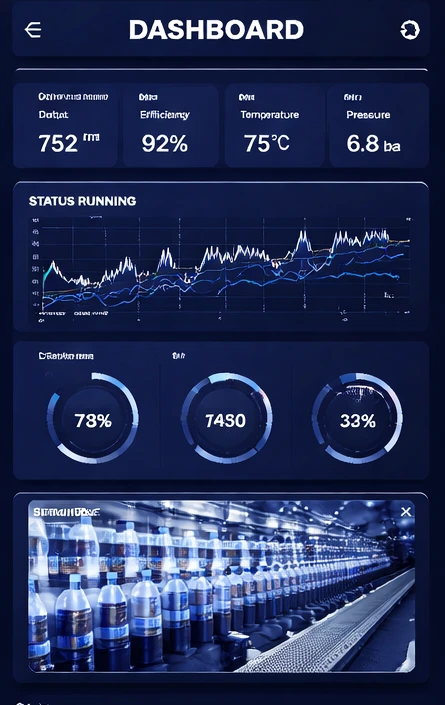
Digital twin & HMI


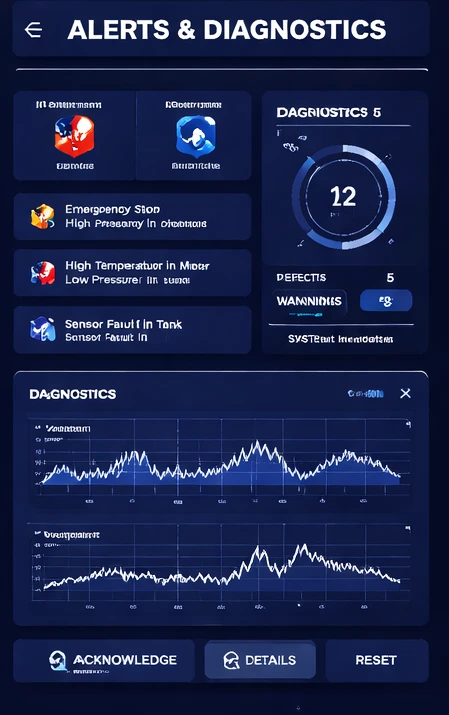
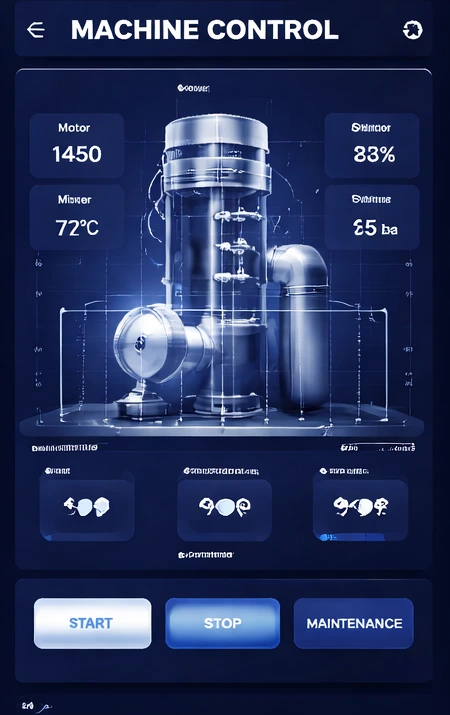
3D Builder connects your machine's virtual model to the real states of your plant. You import the geometry, link it to your tags, and get a replica that moves with the line. Operators see states, alarms and diagnostics right on the component — they interact with what they recognise: the structure of the machine.

Features


Guided wizards for movements, statuses and alarms: you assign behaviour piece by piece, and every property hooks onto a tag — booleans, integers, reals. Live labels show real values, like position and speed, next to the part they belong to. No code, at any step.

Integration


You export your 3D scene as a ready-to-use component for your HMI or SCADA: Siemens WinCC Unified (TIA Portal), WinCC V8.1 and later, FT Optix, AVEVA InTouch, Ignition, or a web application for Linux and Windows. Import it into your project and the same scene runs on the panel. DevIBrain is an official ASEM Partner (FT Optix) and is completing the official Siemens certification.

Supported formats


GLB, GLTF and STEP files in; out comes a ready-to-use component for your HMI or SCADA — multi-brand — or a standalone web application.
In three steps

UPLOAD

Bring your component onto the platform

Drag your 3D file into the browser and the model is ready in seconds. Nothing to install: the project lives in your workspace.

UPLOAD

MOVE

Configure behaviour and data

Assign movements, statuses and alarms to each part with guided wizards. Every property hooks onto a tag: not a single line of code.

MOVE

EXPORT

Integrate it into your operator panel

One click and you get a ready-to-use component for your HMI or SCADA, whatever the brand. The same scene runs identical in the browser and on the panel.

EXPORT

Frequently asked questions about 3D Builder

Your machine or your plant in 3D, shown directly inside your HMI. Operators see the real state of things on a 3D model of the machine, not on an abstract diagram: states, alarms and live values appear on the component they belong to.

No. You upload an existing model, position it and connect it — the 3D design work has already been done by whoever created the model. Guided wizards take care of the rest.

You upload GLB, GLTF or STEP files — what mechanical design typically hands over. You drag the file into the browser and the model is ready to work on.

You export the component from 3D Builder and import it into your project as a Custom Web Control. In TIA Portal you link it to your tags, and the scene runs on the panel exactly as you built it. No code to write.

Yes. You link the exported component to your plant's signals, and movements, states and alarms show up on the machine in 3D. What the operator sees on the panel is what the plant is actually doing.

Yes. All the building happens in the browser, inside your workspace on the platform. You install nothing on your PC — only the exported component, in your HMI environment.

Yes, with the essential features and a sample download to try the whole flow, from upload to export. The full version comes with the business plans.

The essential version (Trial and Base plans) covers the core work; the full version (Business and up) unlocks every feature. The exact differences are as per the price list.